
Download Paragon Backup Recovery – Free Backup & Recovery Tool for Windows
Overview – Why Paragon Backup Recovery Stands Out
Paragon Backup & Recovery is a free, all‑in‑one backup and restoration solution designed for personal computers that need a reliable safety net against system crashes, accidental deletions, or hardware failure. Built on Paragon’s long‑standing reputation for disk management utilities, this software delivers both the simplicity required by novice users and the depth demanded by power users. Whether you need a quick one‑click image of your Windows operating system or a scheduled backup of only the files that have changed, Paragon Backup Recovery adapts to your workflow without compromising security.
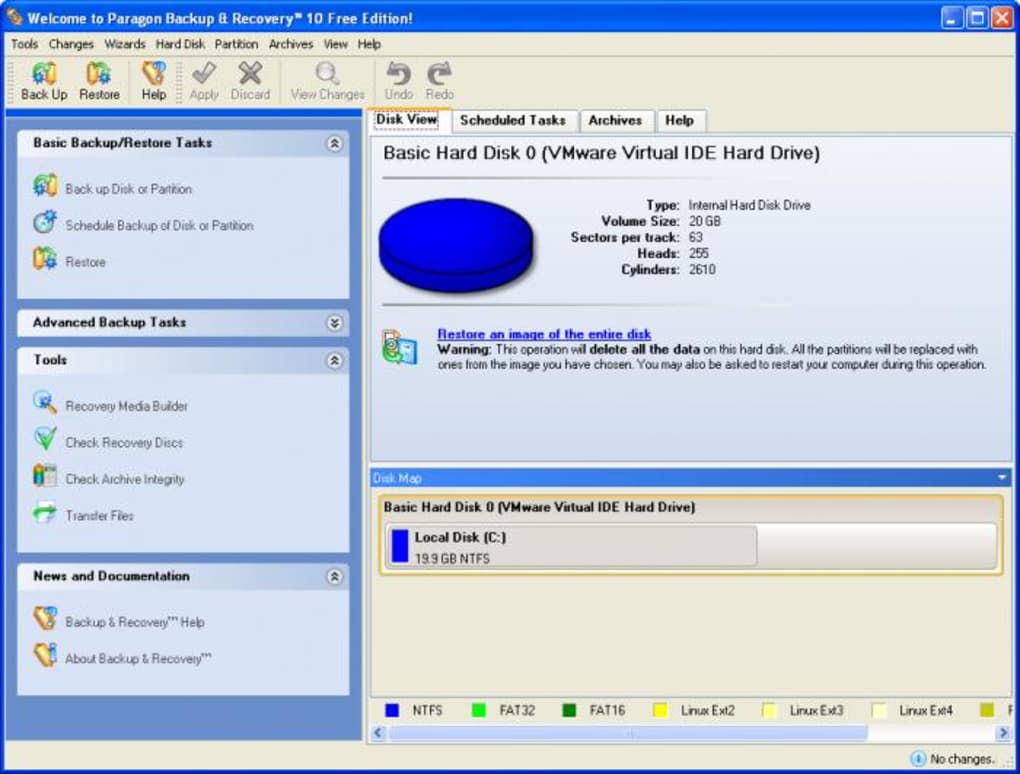
The interface follows an intuitive wizard‑style layout, guiding you step‑by‑step through creating backup sets, choosing storage destinations, and setting recovery preferences. For those already using other Paragon utilities—such as hard drive partitioning or SSD optimization—this backup tool integrates seamlessly, allowing you to manage all aspects of your PC from a single dashboard. Its free‑for‑personal‑use license removes financial barriers while still offering advanced features like bootable archive creation, differential backups, and automatic recovery triggers.
In short, Paragon Backup Recovery provides peace of mind through redundancy, flexibility, and an easy‑to‑learn interface that makes data protection a non‑negotiable part of everyday computer use.
Key Features & Advanced Options
- One‑Click Full System Imaging – Capture the entire Windows OS, installed programs, and user data in a single archive.
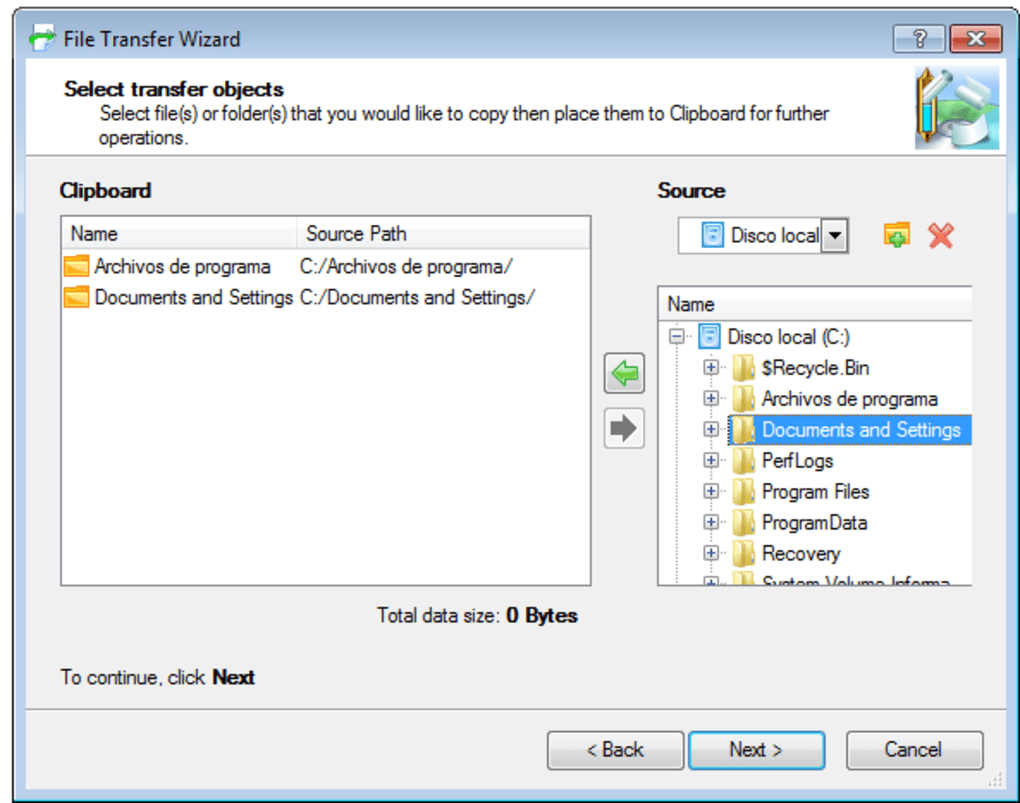
- Selective File & Folder Backup – Choose specific directories or file types to back up, reducing storage needs.
- Incremental & Differential Backups – Only new or changed files are saved after the initial backup, speeding up subsequent runs.
- Bootable Recovery Media – Create a bootable USB or ISO that can restore your system even when Windows fails to start.
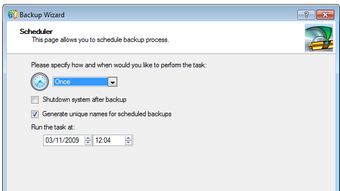
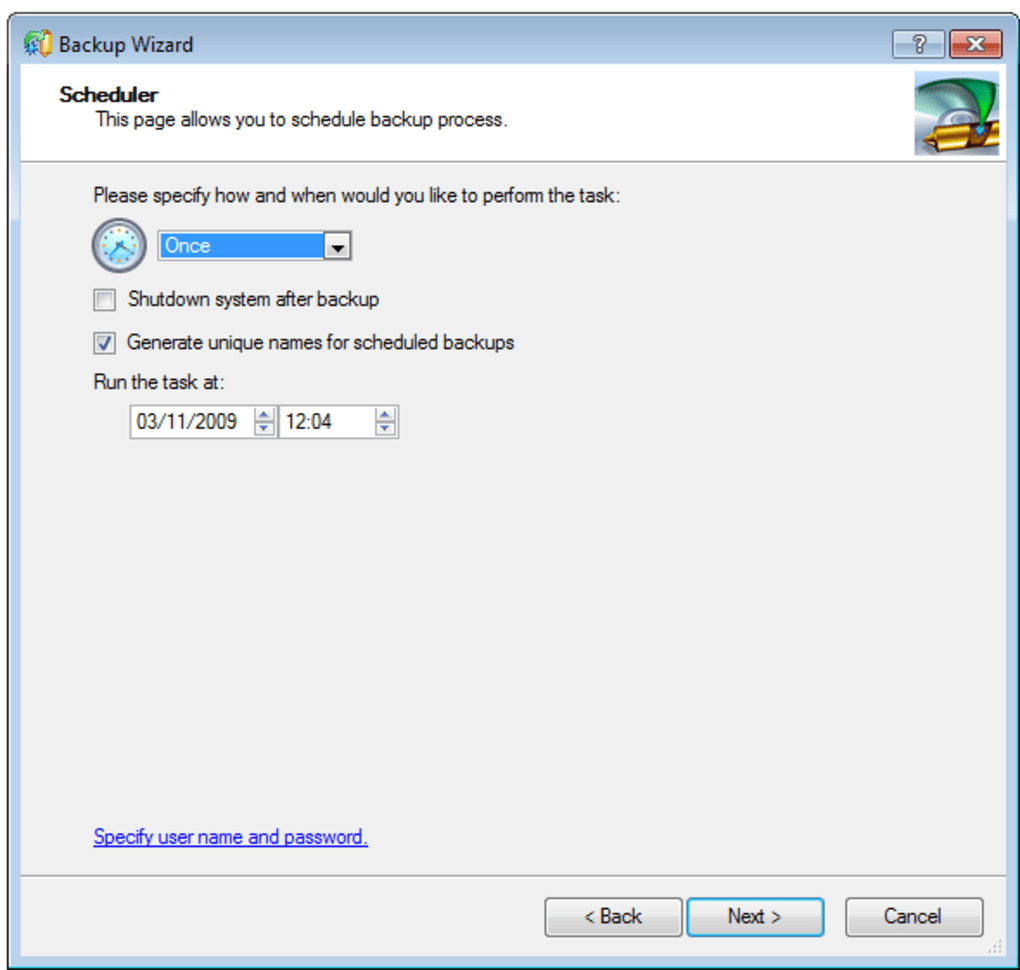
- Scheduled Backups – Set daily, weekly, or monthly backup jobs that run automatically without user intervention.
- Restore Points & System Snapshots – Generate Windows‑compatible restore points for quick rollback of system settings.
- External Storage Support – Back up directly to external hard drives, NAS devices, or cloud‑connected folders.
- Partition‑Level Recovery – Isolate and recover individual partitions, useful for multi‑boot environments.
- Adaptive Backup Engine – Detects and skips unchanged data, optimizing both speed and storage consumption.
- Automatic Failure Detection – Triggers an immediate recovery routine if a sudden system shutdown is detected.
While the feature list reads like a checklist for enterprise‑grade solutions, Paragon has kept the user experience streamlined. Each option is presented with clear icons and short explanations, allowing even first‑time PC owners to configure a backup strategy in minutes. The “Backup Wizard” walks you through selecting a source, destination, and schedule, then automatically applies best‑practice settings such as compression level and verification checks.
For power users, the “Advanced Settings” panel unlocks granular control over compression algorithms, encryption keys, and network bandwidth throttling. This dual‑layer approach means you never feel overwhelmed, yet you retain the freedom to fine‑tune the tool to match your exact redundancy requirements. Whether you’re safeguarding a family photo archive, a gaming library, or critical work documents, Paragon Backup Recovery’s flexible architecture ensures that the right data is always protected and quickly recoverable.
Installation, Usage & Compatibility
Getting Paragon Backup Recovery up and running is a straightforward process that takes less than ten minutes on a typical Windows 10 or Windows 11 machine. After downloading the installer from the official Paragon website, double‑click the .exe file and follow the on‑screen prompts. The installer checks for required .NET components and automatically installs them if missing, ensuring a smooth setup on older systems. Once installed, launch the application from the Start menu; the first launch presents a brief welcome tour that highlights the main dashboard, backup wizard, and recovery console.
Step‑by‑Step Usage Guide
- Create a Backup Set: Click “New Backup,” select “Full System” or “Custom Files,” then choose the destination (external HDD, USB, or network share).
- Configure Schedule: Opt for “Run now,” “Daily at 02:00 AM,” or a custom interval. Enable “Run when idle” for minimal performance impact.
- Set Recovery Options: Decide whether to generate a bootable rescue media automatically or on demand. You can also enable the “Auto‑Recover on Failure” toggle.
- Start the Backup: Press “Start Backup.” Paragon displays real‑time progress, estimated time, and a checksum verification at the end.
- Restore When Needed: In the event of a crash, boot from the rescue media, select the appropriate backup archive, and follow the guided restoration steps.
The software’s compatibility spans all modern Windows editions: Windows 10 (64‑bit), Windows 11, and Windows 8.1. Although Paragon primarily targets Windows users, the backup archives are stored in a proprietary format that can be read by the same application on any Windows machine, making it easy to migrate backups between home and office PCs. For users who prefer macOS or Linux environments, Paragon offers separate backup utilities, but this particular free version is Windows‑only.
Pros & Cons
- Pros
- Completely free for personal use – no hidden fees or trial periods.
- User‑friendly interface suitable for beginners.
- Advanced scheduling and incremental backup capabilities.
- Bootable rescue media creation for total system recovery.
- Seamless integration with other Paragon tools.
- Cons
- Limited to Windows platforms – no native macOS or mobile app.
- Backup archives use a proprietary format; third‑party tools cannot read them directly.
- No built‑in cloud storage option; relies on external drives or network shares.
- Advanced features (e.g., encryption) may require manual configuration.
- Support is community‑based for the free version, which can result in slower response times.
Frequently Asked Questions
Can I back up my Windows 11 PC with Paragon Backup Recovery?
Yes. The latest version of Paragon Backup Recovery fully supports Windows 11 (both 64‑bit and ARM64 where applicable). The installer automatically detects the OS version and applies the appropriate drivers.
Is the backup data encrypted?
Encryption is available as an optional setting in the “Advanced Settings” panel. Users can enable AES‑256 encryption and set a custom password to protect their archives.
How much storage space will a full system image require?
The size depends on the amount of data stored on the drive and the compression level selected. Typically, a full image of a 500 GB drive with moderate data occupies between 150 GB and 300 GB after compression.
Can I restore a backup to a different PC?
Yes, as long as the target hardware is compatible with the operating system version stored in the backup. Paragon’s bootable media can adapt drivers during restoration, making cross‑machine recovery feasible.
Is there a limit to the number of backup sets I can create?
No. The free version imposes no explicit limit on backup sets. However, storage capacity on the chosen destination will naturally constrain how many archives you can retain.
Paragon Backup Recovery delivers a solid mix of ease‑of‑use and powerful backup capabilities without charging a dime. Its intuitive wizard, reliable incremental engine, and bootable rescue media make it a top choice for home users who want a safety net against data loss. While the lack of native macOS support and built‑in cloud storage are minor drawbacks, the overall value and stability more than compensate, earning it a strong 4.5‑star rating.
Reviewed by Tech Insight Review on
Conclusion – Secure Your PC Today
In an era where data loss can happen in an instant—whether through a sudden power outage, ransomware attack, or simple human error—having a dependable backup solution is no longer optional. Paragon Backup Recovery answers that need with a free, feature‑rich package that respects both novice and seasoned users. Its one‑click system imaging, flexible scheduling, and bootable rescue media give you the confidence that your operating system, applications, and personal files can be restored quickly and securely. Even though it currently supports only Windows, the depth of functionality and seamless integration with other Paragon utilities make it a standout choice for anyone looking to safeguard a home PC without breaking the bank.
Ready to protect your digital life? Download Paragon Backup Recovery now and start building your first backup set within minutes. Take advantage of the free license, set up automatic recovery, and enjoy the peace of mind that comes with knowing your data is always just a few clicks away from being restored.







